
FluentRead - Open Source Translation Plugin
FluentRead configuration guide — open-source browser translation plugin with 20+ engines and AI model support. Connect to Gate Hub for immersive bilingual reading.
Chat Settings Options
In the System Settings -> Chat Settings of the Gate Hub console, you can add the following shortcut options for easy one-click population to FluentRead on the Token Management page:
{ "流畅阅读": "fluentread" }🌊 FluentRead is an open-source browser translation plugin dedicated to providing a native-like reading experience.
- Project Address: https://github.com/Bistutu/FluentRead
🌟 Core Features
Smart Translation Engine
- Multi-Engine Support: Supports 20+ translation engines
- Traditional Translation: Microsoft Translate, Google Translate, DeepL Translate, etc.
- AI Large Models: OpenAI, DeepSeek, Kimi, Ollama, etc.
- Custom Engine: Supports custom translation service configuration
Immersive Reading Experience
- Bilingual Comparison: Original and translated text displayed side-by-side for easier reading
- Selection Translation: Select any text to get instant translation results
- One-Click Copy: Quickly copy translated text to improve reading efficiency
- Full-Page Translation: One-click translation of the entire webpage with a floating button, no page refresh required
Privacy and Customization
- Privacy Protection: All data stored locally, open-source and transparent code
- High Customization: Rich customization options to meet different scenario needs
- Completely Free: Open-source and free, non-commercial project
📦 Installation Methods
| Browser | Installation Method |
|---|---|
| Chrome | Chrome Web Store | Domestic Mirror |
| Edge | Edge Add-ons Store |
| Firefox | Firefox Add-ons Store |
🚀 Configuration Methods
Import Configuration from Gate Hub Console (Recommended)
After the FluentRead plugin is installed in your browser, opening the Gate Hub console -> Token Management page will display a prompt to add FluentRead.
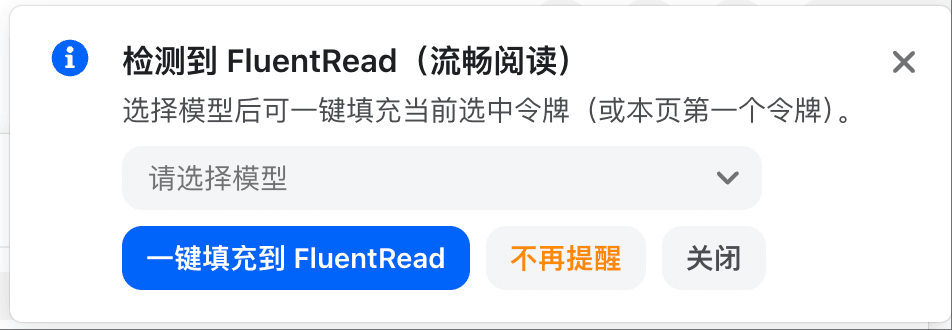
After selecting a model, click 'One-click fill to FluentRead', and a confirmation window will pop up. Check if the corresponding information is correct.
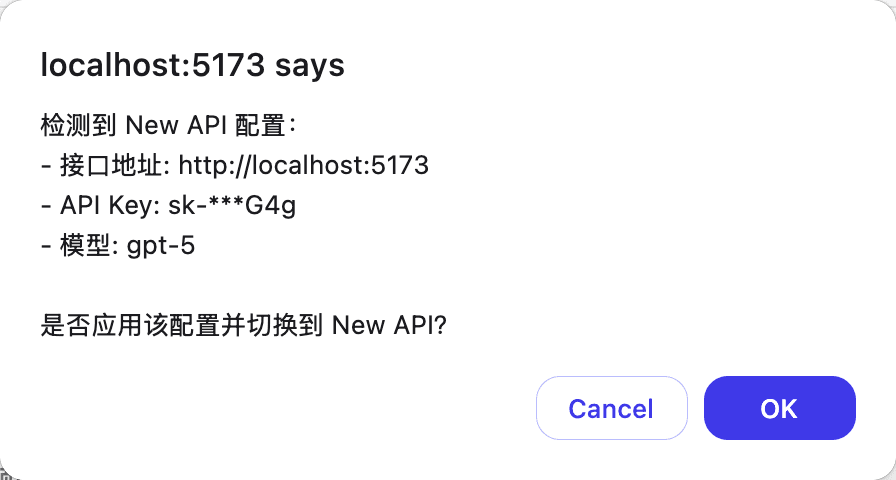
After confirming the import, the Gate Hub configuration in FluentRead will be enabled.
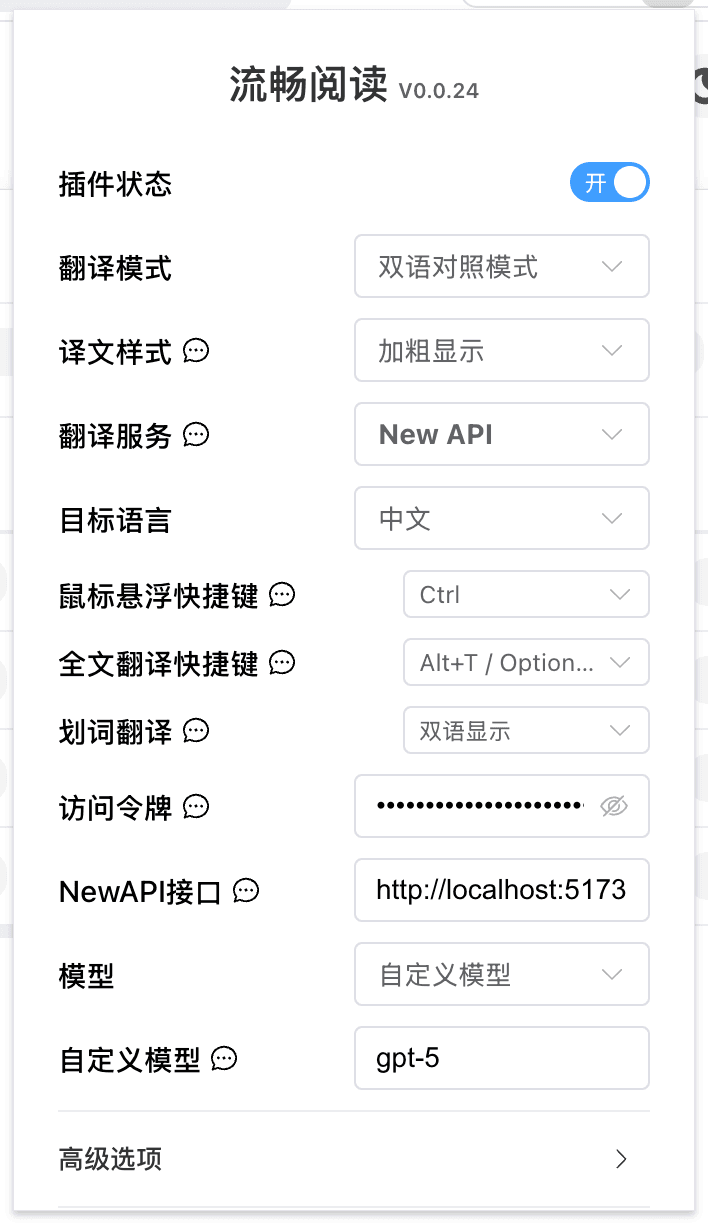
Manually Fill in Configuration in FluentRead
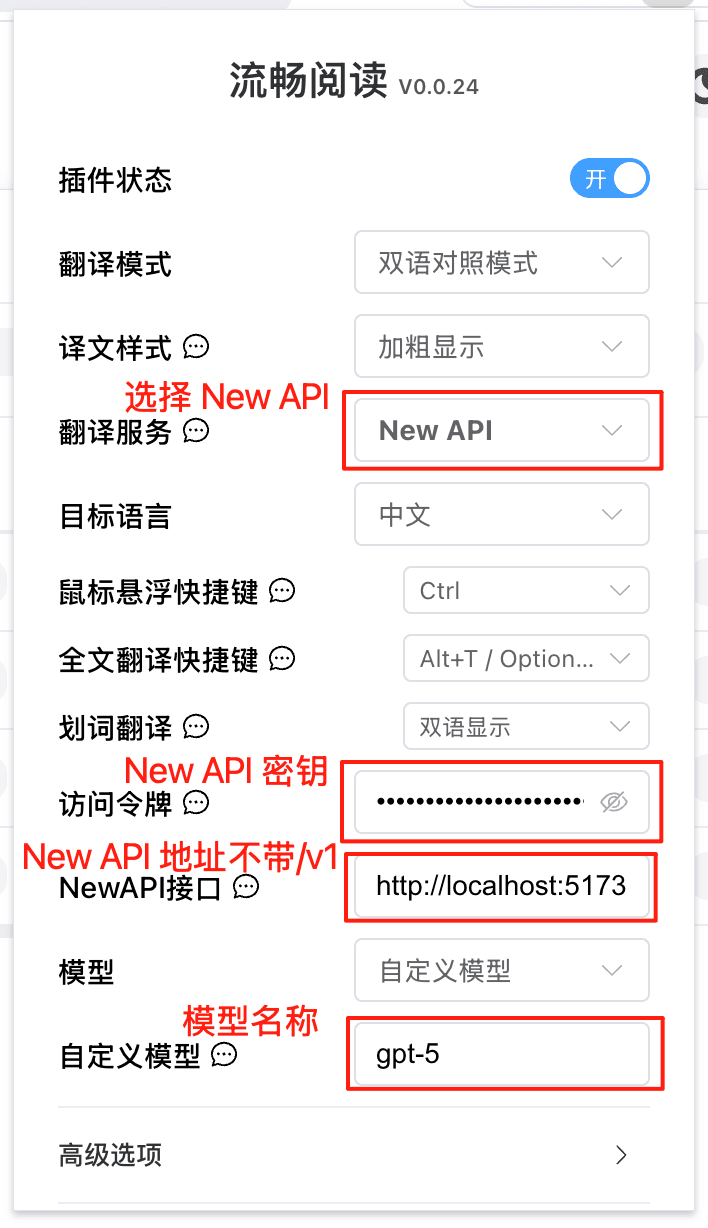
| Configuration Item | Content |
|---|---|
| Translation Service | GateHub |
| Access Token | GateHub Key |
| GateHub Endpoint | GateHub Deployment Address (without /v1) |
| Model | Select from list, or custom model |
| Custom Model | Model Name |
How is this guide?
Cherry Studio - Desktop AI Client
Cherry Studio configuration guide — connect this powerful desktop AI client to Gate Hub with one-click API key setup. 30+ built-in AI assistants for various workflows.
Memoh - Containerized AI Agent Platform
Memoh integration guide — Connect the self-hosted containerized AI agent platform to Gate Hub, creating AI bots with long-term memory for Telegram, Discord, Lark, QQ, WeChat, and more.